

HOW-TO GUIDE | WORDPRESS | ON-PAGE SEO
A practical walkthrough for small business owners who want to improve one real page, not memorize SEO jargon
To add keywords to your website for SEO, start with one page and one clear search topic. Put natural wording in the SEO title, main heading, opening paragraph, and useful sections of the page. Then link related pages, describe images accurately, and review Search Console data to see what changes.
Key Takeaways
- Start with the customer’s question, then improve the page that should answer it
- Use the main phrase in the SEO title, a clear heading, and natural copy where it belongs
- Don’t repeat the same phrase in every sentence or create competing pages for it
- WordPress gives you the page title and content editor; SEO title and meta description fields usually come from your SEO plugin
- Measure search queries, impressions, clicks, and enquiries rather than chasing a keyword density score
Picture This: You Own a Roofing Business in Austin
A homeowner types roof repair Austin TX into Google after noticing a leak. She’s not interested in a page that says Welcome to our amazing company. She wants to know if you repair leaks in Austin, what happens during an inspection, and how to request help.
That’s the starting point for keyword placement. The words on your page should explain what you do in the language customers use. An exact match isn't a substitute for a useful answer.
In this tutorial, we’ll improve one fictional ABC Roofing service page from start to finish. The example is made up for teaching, not an actual SEO Specialist USA client or a ranking claim.
Where to Put Keywords on a Website
Think of your page like a shop window. Your SEO title tells people what’s inside, your main heading confirms they’re in the right place, and the page itself helps them decide what to do next.
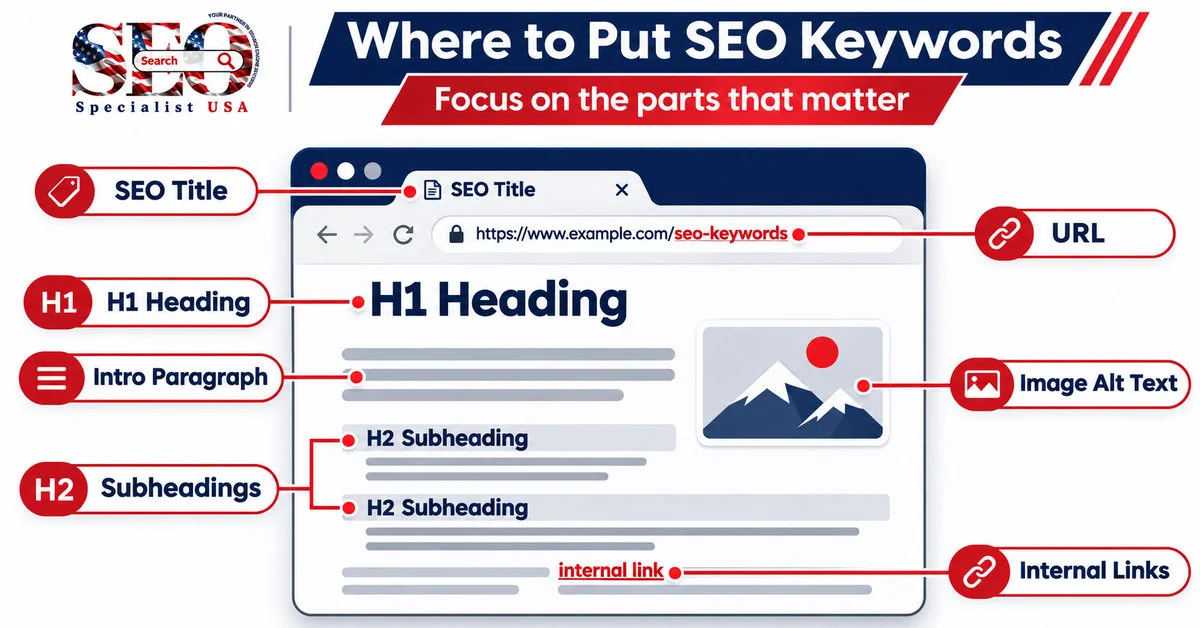
Website diagram: potential keyword locations. Use natural wording, not an exact phrase in every field.
|
Page element |
What to write for the Austin roofing example |
Why it helps |
|---|---|---|
|
SEO title |
Roof Repair in Austin, TX | ABC Roofing |
Describes the page in search results |
|
H1 heading |
Roof Repair Services in Austin |
Confirms what the page covers |
|
Opening paragraph |
Need help with a roof leak in Austin? We inspect… |
Matches the visitor’s immediate question |
|
H2 headings |
Roof Leak Repairs / What to Expect |
Organizes useful sections |
|
URL for a new page |
/roof-repair-austin-tx/ |
Keeps the address descriptive |
|
Internal link |
See our roof inspection service |
Connects related pages |
|
Image alt text |
Roofer inspecting storm-damaged shingles |
Describes a meaningful image accurately |
A meta description can summarize the page and encourage a click, but it isn’t a direct Google ranking signal. And the old meta keywords tag isn’t used by Google Search. Spend your time on the page people can actually read.
Step 1: Find One Phrase That Matches the Page
First, decide what this specific page is supposed to help someone do. A service page that sells roof repairs has a different job from a blog explaining how roof repair works.
- Write down the service, product, or question that the page should answer
- Imagine how a customer would search for it, including location if the service is local
- Search that phrase and inspect the results: are people looking for a service, instructions, products, or comparisons?
- Pick one primary topic and a few related phrases that fit the same purpose
For our roofing page, roof repair Austin TX is a suitable main topic. Roof leak repair, storm damage repair, and roof inspection can appear as related services when the company genuinely provides them. You don’t need three separate pages that say the same thing with minor keyword changes.
Need a deeper explanation of how to prioritize your first fixes? Read our first 30 minutes of an SEO audit
Step 2: Improve the Page Before You Touch the SEO Plugin
Open the page and read it aloud. If a customer can’t tell what you offer after the first few sentences, fix that first. Then review the heading, service details, areas served, proof of work, and contact options.

Fictional ABC Roofing page before and after clearer search-focused content. These are example webpages, not real campaign results.
Before: Our Services and Welcome to Our Company don’t help a homeowner understand the offer. After: Roof Repair Services in Austin makes the subject clear, while the supporting text explains leak repair, inspections, and storm damage work.
A useful opening paragraph could say: Need roof repairs in Austin? ABC Roofing inspects leaks, damaged shingles, and storm damage. We’ll explain the problem and walk you through the repair options before work begins. Only make claims the business can support.
Step 3: Add Keywords in WordPress Without Guessing
WordPress calls its page builder the block editor, also known as Gutenberg. The exact controls can differ by theme and installed plugins. Here’s the safe, beginner-friendly path.
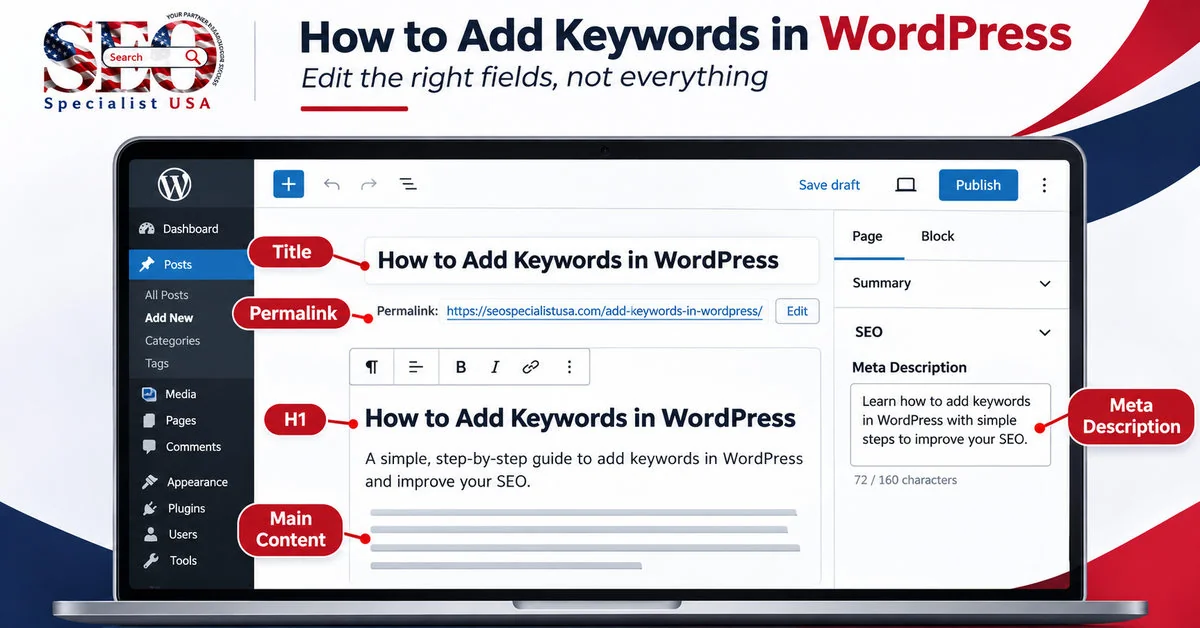
Illustrative WordPress-style editor with callouts. It is not a live screenshot, and plugin controls can appear in different places.
Open the page you want to improve
- Sign in to your WordPress dashboard and open Pages or Posts
- Find the existing page and click Edit
- Check the current title and page content before replacing anything
Edit the visible page content
- Give the page a clear title that describes its subject
- Use a Heading block for meaningful H2 sections such as What We Repair or How Our Process Works
- Rewrite the introduction so it answers the visitor’s question immediately
- Add useful details, examples, photos, and a clear way to contact the business
Update the search snippet fields
If your website uses Yoast SEO, Rank Math, or another SEO plugin, look for its SEO title and meta description settings. Their location varies by plugin and configuration. Enter a clear title and a concise, accurate description of the page.
Example SEO title: Roof Repair in Austin, TX | ABC Roofing
Example meta description: Need roof repair in Austin? Learn about leak repairs, storm damage and inspections from ABC Roofing. Request an estimate.
Some plugins also have a focus keyphrase field. That’s mainly a tool for the plugin’s content analysis; entering a phrase there doesn’t tell Google to rank your page.
Check the URL before changing it
If you’re creating a new page, a readable slug such as /roof-repair-austin-tx/ is fine. If the page already gets traffic or has backlinks, don’t rename its URL just to squeeze in a keyword. A change can require redirects and careful checking.
Preview, then publish
Preview on mobile and desktop, test the contact link or form, and check that the title and headings read naturally. Save your edits once the page helps the person who landed there.
Step 4: Add Helpful Internal Links and Honest Image Descriptions
A good internal link helps someone take their next step. For a roof repair page, you might link to roof inspections, storm damage assistance, or a service-area page. Don’t force a link into every paragraph.
When you add a useful photo, describe what the photo actually shows. Contractor inspecting missing shingles on a residential roof is better alt text than repeating best roof repair Austin five times. Decorative images may need empty alt text.
Google recommends useful content, descriptive links, and relevant text around images. Those are better investments than stuffing your main phrase into every possible field.
What About Shopify, Wix, and Squarespace
The same writing principles apply even if you don’t use WordPress. The controls have different names, so use the platform’s page or product editor and look for SEO, search appearance, or listing preview settings.
|
Platform |
Where to start |
What to update |
|---|---|---|
|
Shopify |
Product, collection, or page editor |
Visible content plus search engine listing details |
|
Wix |
Page SEO settings and website editor |
Page title, description, headings, visible copy |
|
Squarespace |
Page settings and SEO fields |
SEO title, description, readable content |
You can publish a strong page without installing a collection of keyword tools. The words, the structure, and the visitor’s experience matter more.
Step 5: Check Your Results in Google Search Console
After updating the page, note the date and give search engines time to process the changes. Google Search Console helps you see which searches show your website, but the numbers won’t necessarily change overnight.
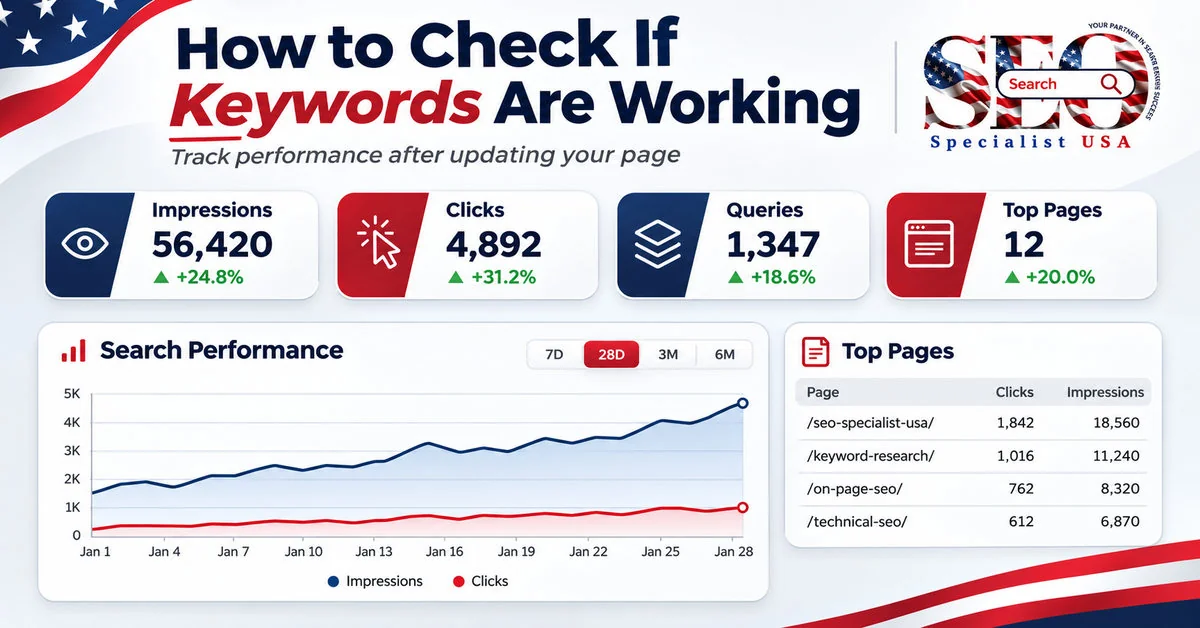
Illustrative search-performance dashboard with fictional numbers. It is not actual Search Console data or a client result.
- Open Google Search Console and select your website property
- Go to Performance or Search results
- Use the Pages view to locate the page you edited, then filter or select that URL
- Open Queries to see the terms that triggered impressions for that page
- Compare a suitable date range before and after your update, allowing for seasonality and other changes
- Check calls, forms, or sales separately when your website tracking supports them
Look for relevant searches, not just bigger totals. A page can get fewer visits but attract customers who actually need the service. Also remember that an observed increase doesn’t prove one wording change caused it.
Six Keyword Mistakes Worth Avoiding
- Repeating roof repair Austin TX every few lines until the page feels awkward
- Changing several established URLs only to add keywords, without redirects
- Putting a target phrase in an image’s alt text even when the picture shows something else
- Making multiple near-identical pages for tiny variations of the same phrase
- Assuming the meta keywords tag or plugin focus keyphrase field tells Google where to rank you
- Judging success from a green SEO plugin score instead of useful pages and qualified enquiries
A 15-Minute Keyword Placement Checklist
Try this on one service page today. You don’t need to redo your whole website in one sitting.
- ☐ I can describe what the page offers in one sentence
- ☐ The SEO title is specific and readable
- ☐ The H1 tells visitors they’re in the right place
- ☐ The first paragraph answers the real search intent
- ☐ The subheadings organize useful information
- ☐ The images have honest descriptions where needed
- ☐ Related pages have sensible internal links
- ☐ The page works on mobile and has a clear next step
- ☐ I’ve noted the edit date so I can review Search Console later
When It Makes Sense to Get an SEO Specialist Involved
If you’re working on one or two pages, you can make many of these improvements yourself. But a bigger site needs more than keyword placement. Pages can compete with one another, important URLs may be blocked from indexing, or customers may leave before contacting you.
At SEO Specialist USA, we connect keyword research with the pages that need it, review technical barriers, and improve content around real customer searches. You get a priority list and practical implementation, not a mysterious keyword spreadsheet.
See how our team handles on-page SEO services for business websites.
Ready for a page-by-page review? Get My SEO Audit
Frequently Asked Questions
Where should I add SEO keywords on my website?
Start with a clear SEO title, H1 heading, and helpful opening paragraph. Use related wording in subheadings and body text when it fits naturally. Add useful internal links and accurate image descriptions instead of repeating the same phrase everywhere.
How do I add SEO keywords in WordPress?
Open the relevant page or post in WordPress, edit its title, headings, and visible content, then update the SEO title and meta description in your installed SEO plugin if one is available. Preview everything before publishing.
Do I need a plugin to add keywords to a website?
No. You can write clear page titles, headings, paragraphs, and links without an SEO plugin. A plugin can make snippet fields and technical settings easier to manage, but it doesn't replace useful content or good page structure.
Does Google use the meta keywords tag?
No. Google Search doesn't use the meta keywords tag for ranking. Put your effort into a descriptive page title, relevant content, clear headings, and useful links. A meta description can help explain your page in search results.
How many times should I repeat a keyword on a page?
There's no reliable universal number. Use the phrase where it helps explain the page, and use normal variations when they fit. If repetition sounds awkward when you read the page aloud, revise it for the visitor rather than a keyword-density target.
Should I add my keyword to every image alt text?
No. Alt text should describe the image accurately and help someone understand its content. Mention the topic only if it naturally describes the picture. Repeating unrelated keywords in alt text can make the page less useful and accessible.
Should I change my URL to include a keyword?
For a new page, a short descriptive URL can help people understand what they'll open. For an established page, don't change the URL solely to add a phrase. Check existing traffic, links, and redirect requirements before changing it.
How do I know my SEO keywords are working?
In Google Search Console, filter the Performance report by the edited page and inspect queries, impressions, clicks, and changes over time. Compare this with meaningful website actions such as calls or forms. One metric alone won't prove success.
Final Thoughts
You don’t need to hide a keyword in every corner of your website. Make one page unmistakably useful for one real customer need, put the right words where they explain that need, and measure what happens afterward. That’s a much better first SEO project than chasing a perfect keyword score.
Want us to review the pages that bring in your business? Talk to Our SEO Team
Sources and Further Reading
Google Search Central: SEO Starter Guide
Google Search Central: How titles appear in Search
Google Search Console Help: Performance report